On this page
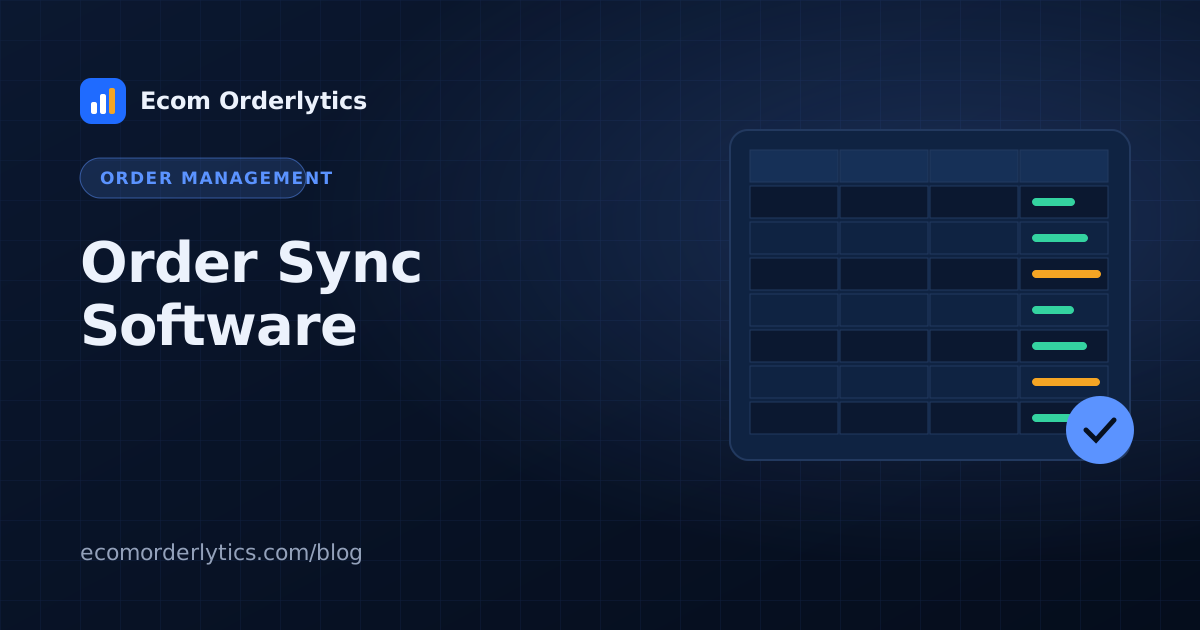
A good order tracker is boring in the best way: the same columns, filled the same way, by everyone, every day. Here is the layout we recommend for marketplace sellers.
The essential columns
| Column | Example | Why |
|---|---|---|
| Order date | 2026-10-21 | Daily and monthly totals |
| Marketplace order ID | 12-34567-89012 | Unique key, avoids duplicates |
| Supplier | Supplier name | Compare suppliers |
| Supplier order ID | A-99812 | Match purchases to sales |
| Quantity | 1 | Units sold |
| Payout | 34.20 | Money from the marketplace |
| Sourcing cost | 18.50 | Product cost |
| Shipping cost | 5.10 | Delivery cost |
| Prep cost | 0.90 | Packaging and labels |
| Order status | Completed / Refund / Cancelled | Honest totals |
| Tracking | Tracking number | Customer service |
The profit formula
Add a Profit column: =Payout - Sourcing - Shipping - Prep.
For a monthly total, use SUMIFS on the profit column filtered by month and status. Exclude cancelled orders, and decide clearly how you treat refunds.
Five rules that keep a tracker clean
- One row per order. Never merge orders into one row.
- Order ID is unique. It is how duplicates are caught.
- Never delete refunds. Change the status instead.
- Dates in one format. Mixed formats break monthly totals.
- One sheet per account. Do not mix stores in one tab.
Useful formulas for your tracker
Assuming payout is in column F and costs are in G, H and I:
- Profit per row:
=F2-G2-H2-I2 - Margin per row:
=IF(F2=0,"",J2/F2)(using profit in column J) - Monthly profit:
=SUMIFS(J:J, A:A, ">="&DATE(2026,10,1), A:A, "<"&DATE(2026,11,1), K:K, "<>Cancelled") - Refund count this month:
=COUNTIFS(K:K, "Refund", A:A, ">="&DATE(2026,10,1))
Adjust the column letters to match your sheet.
Data validation keeps the sheet clean
Use Data → Data validation in Google Sheets to:
- Limit the status column to Completed, Refund and Cancelled.
- Require dates in the date column.
- Require numbers in payout and cost columns.
Validation stops most typing mistakes before they reach your totals.
Protect the header row
Lock the header row (Data → Protect sheets and ranges) so nobody renames or deletes a column by accident. Renamed columns are one of the most common reasons syncs and formulas break.
From tracker to dashboard
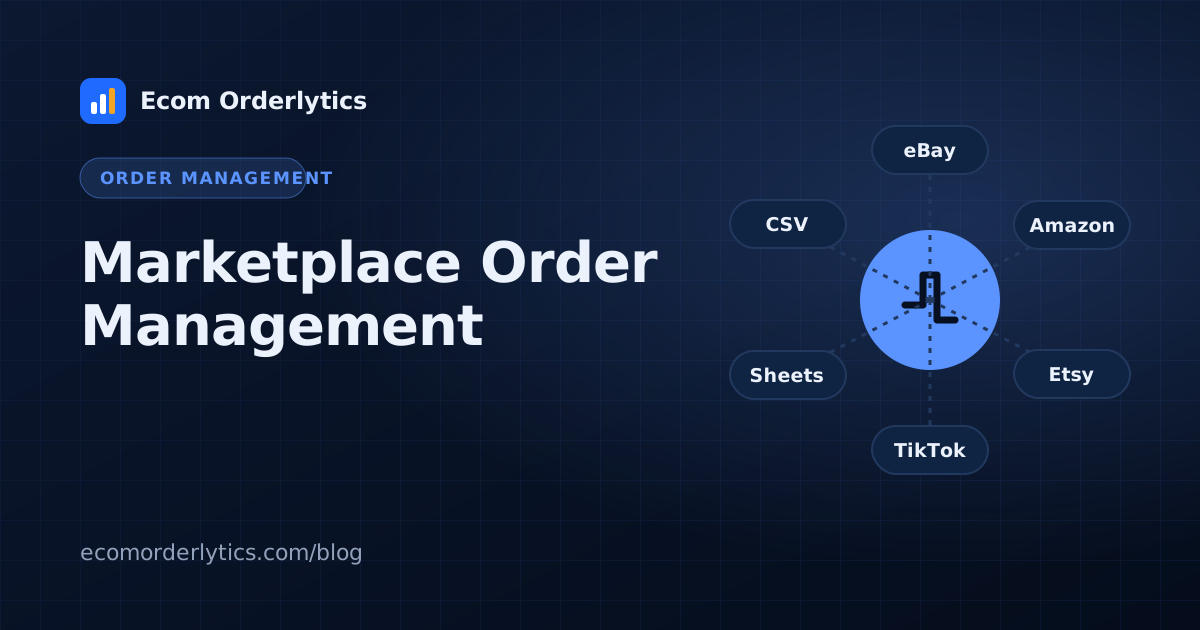
This layout is exactly what Ecom Orderlytics expects. Connect the sheet once and you get sales, payout, expenses, profit and ROI per account, a daily tracker and monthly reports, with no formulas to maintain. Prefer files? Import a CSV, Excel file or sheet link from the Daily Tracker → Import screen and match your columns once.
Ready to stop maintaining formulas? Read when to switch from Google Sheets.
Frequently asked questions
What columns should an order tracking sheet have?
Order date, order ID, supplier, supplier order ID, quantity, payout, sourcing cost, shipping cost, prep cost, order status and tracking number.
How do I calculate profit in the sheet?
Add a column with =Payout - Sourcing - Shipping - Prep for each row.
Should refunds be deleted from the sheet?
No. Mark them with a status so your history and totals stay honest.